This article provides solutions to disable Hyper-V, Device Guard, and Credential Guard to help you use virtualized applications.
Original product version: Windows 10 - all editions
Original KB number: 3204980
Symptoms
Many third-party virtualization applications don't work together with Hyper-V. Affected applications include VMware Workstation and VirtualBox. These applications might not start virtual machines, or they may fall back to a slower, emulated mode.
These symptoms are introduced when the Hyper-V Hypervisor is running. Some security solutions are also dependent on the hypervisor, such as:
- Device Guard
- Credential Guard
To determine whether the Hyper-V hypervisor is running, follow these steps:
-
In the search box, type msinfo32.exe.
-
Select System Information.
-
In the detail window, locate the following entry:
A hypervisor has been detected. Features required for Hyper-V will not be displayed.

Cause
This behavior occurs by design.
Many virtualization applications depend on hardware virtualization extensions that are available on most modern processors. It includes Intel VT-x and AMD-V. Only one software component can use this hardware at a time. The hardware cannot be shared between virtualization applications.
Resolution
To use other virtualization software, you must disable Hyper-V Hypervisor, Device Guard, and Credential Guard. If you're using Hyper-V to run virtual machines or containers, disable Hyper-V Hypervisor in Control Panel or by using Windows PowerShell. Use the following methods, as appropriate.
Method 1: Disable Hyper-V in Control Panel
To disable Hyper-V in Control Panel, follow these steps:
-
In Control Panel, select Programs and Features.
-
Select Turn Windows features on or off.
-
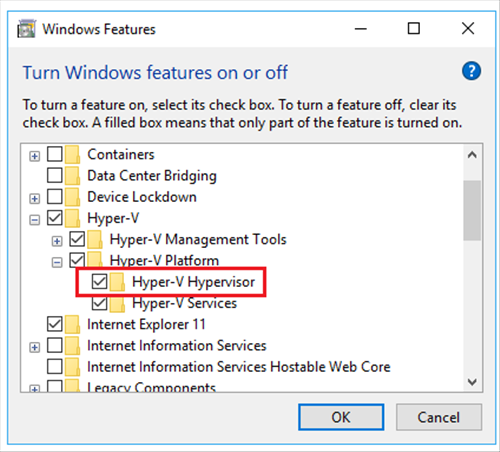
Expand Hyper-V, expand Hyper-V Platform, and then clear the Hyper-V Hypervisor check box.
Method 2: Disable Hyper-V in PowerShell
To disable Hyper-V by using Windows PowerShell, follow these steps:
-
Open an elevated PowerShell Command Prompt window.
-
At the command prompt, run the following command:
ConsoleCopy
Disable-WindowsOptionalFeature -Online -FeatureName Microsoft-Hyper-V-Hypervisor
Method 3: Disable Device Guard and Credential Guard
Disable Device Guard and Credential Guard by using registry keys or group policy. To do it, see Manage Windows Defender Credential Guard.
Third-party information disclaimer
The third-party products that this article discusses are manufactured by companies that are independent of Microsoft. Microsoft makes no warranty, implied or otherwise, about the performance or reliability of these products.